Home › Guides › Set up StreamX
Set up StreamX on your TV
Everything you need to get started: install the app, add your own sources, and switch on the optional extras (TMDB artwork, subtitles and watch-history trackers). Each step takes a minute or two.
1. Install2. Add a source3. TV guide4. Account & sync5. TMDB6. Subtitles7. Trackers8. Profiles & PINTroubleshooting
1. Install StreamX
- Download the latest .apk from the Releases page.
- Install it on your Android TV, Google TV or Fire TV (Android 6.0 or newer) using a downloader app, a USB drive or adb.
- Open StreamX from your apps row.
Need more detail? See how to install the StreamX APK, including fixes for common install errors.
2. Add a source
A source is the playlist or login your provider gave you. Open the Profile menu (the person icon on the top bar), choose Manage sources and pick the source type. Fill in the fields and press Add Source & Sync. StreamX connects, then loads your library.
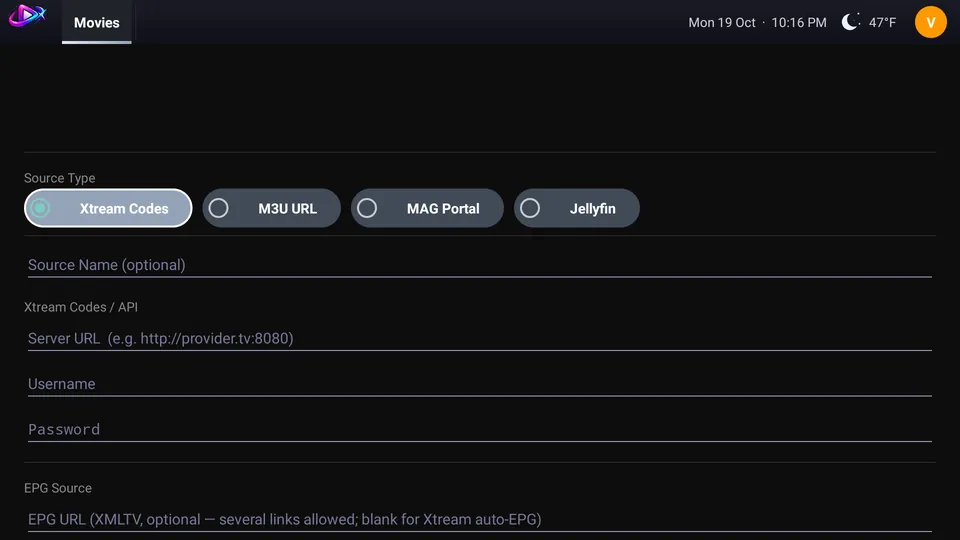
Xtream Codes
- Server URL, for example
http://provider.tv:8080 - Username and Password
- Guide data loads automatically when your provider supplies it
M3U / M3U8 playlist
- M3U Playlist URL
- To combine playlists, paste several links separated by a space
- Optional EPG URL for the TV guide
Stalker / MAG portal
- Portal URL, for example
http://portal.tv/c/ - MAC Address registered with your provider
- Advanced (only if your portal asks): Device ID, Device ID 2, Serial Number
Jellyfin (beta)
- Server URL, for example
http://192.168.1.10:8096 - Your Jellyfin Username and Password
Name your source if you like (optional). You can add several sources and use them side by side. To change or remove one later, go to Manage sources and select it.
Optional HTTP overrides: some providers need a custom User-Agent or Referer. Both fields are in the source form, under HTTP Overrides. Leave them empty unless your provider tells you otherwise.
3. Add a TV guide (optional)
If your provider gave you an XMLTV link, paste it into the EPG URL (XMLTV) field of the source (several links are allowed). Xtream sources can leave it blank and use the guide that comes with the login. Then StreamX shows now and next, and the live mini player. See the EPG guide.
4. Sign in for sync (optional)
You can use StreamX without an account. Sign in only if you want your sources, watch history and settings to follow you to other TVs.
- Open the Profile menu and choose Sign in. Create an account with an email and password, or sign in to an existing one.
- Check your inbox and verify your email if StreamX asks.
- Turn on encrypted sync and enter your account password once. Your source logins, parental PINs, OpenSubtitles logins and settings are encrypted with a key that only your password can open.
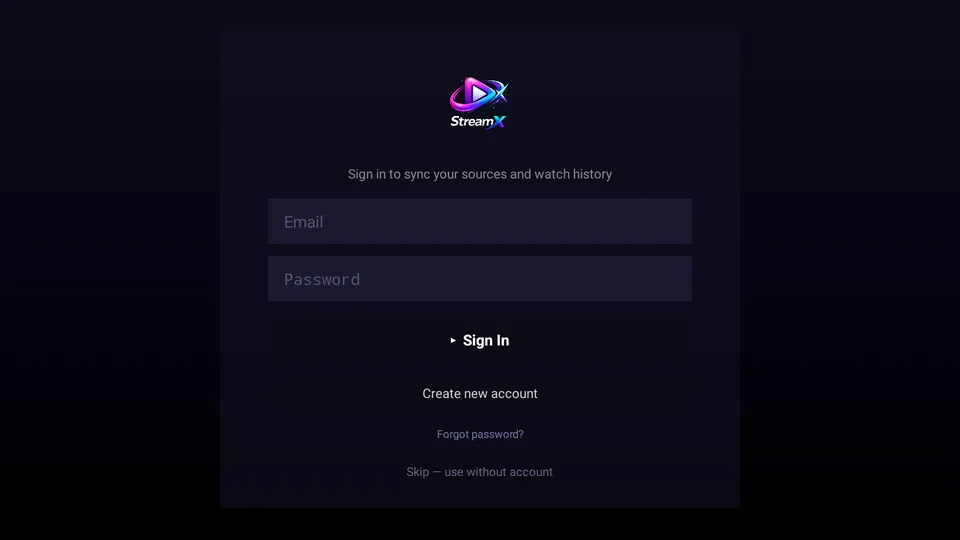
To remove everything, use Profile menu → Delete Account or read how to delete your account and data.
5. Add your own TMDB key (optional)
Posters, cast photos, trailers, ratings, Trending lists and suggestions come from The Movie Database. StreamX can use shared access, or your own free key so the requests count against your own account.
- Create a free account at themoviedb.org.
- Open Settings → API on the TMDB website and request an API key.
- In StreamX, open the Profile menu → TMDB (metadata).
- Paste the API Key (or the long API Read Access Token) and press Save. The row then reads "Using your own TMDB key".
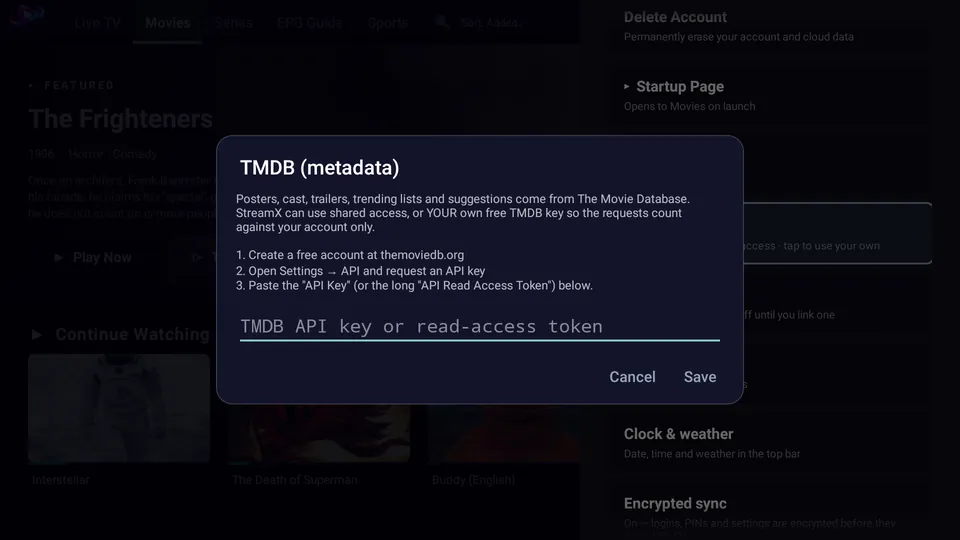
Keep your key private. It is saved on your TV and never posted anywhere public.
6. Set up subtitles (optional)
Subtitles that come with a video are listed in the player automatically. To search for more, StreamX uses your own OpenSubtitles account and your own free API key. It is saved for your profile only, so nothing is shared or paid through StreamX.
- Create a free account at opensubtitles.com.
- Open opensubtitles.com/consumers, create an API consumer and copy its API key.
- In StreamX, open the Profile menu → Subtitles account.
- Enter your username, password and the API key, then press Save.
- While watching, open the subtitle menu to pick a built-in track or search for one.
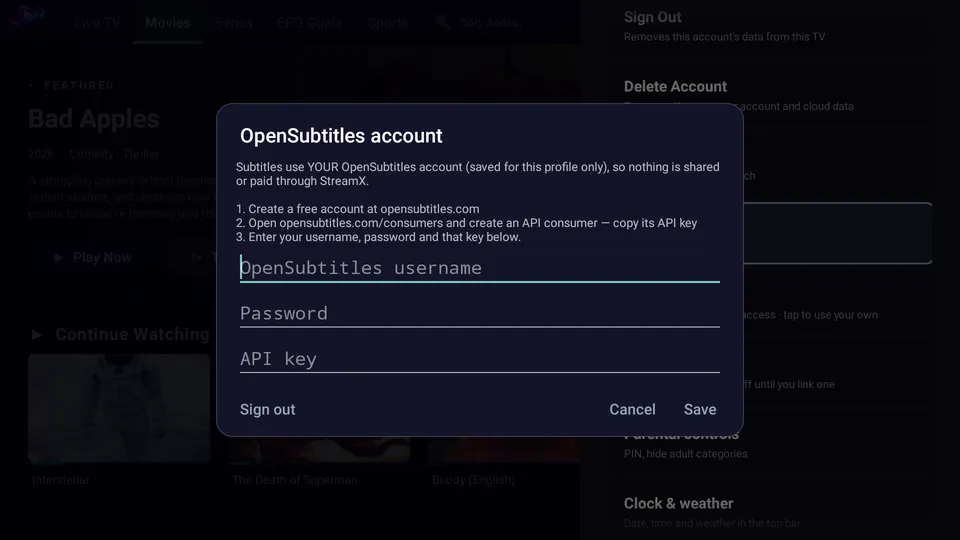
7. Link a watch-history tracker (optional)
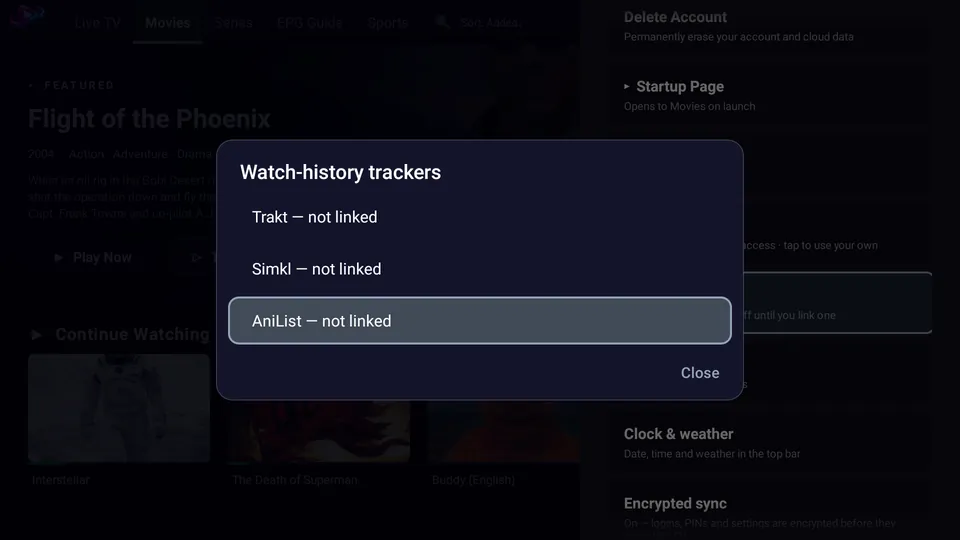
If you link Trakt, Simkl or AniList, movies and episodes you finish are added to your history there. Nothing is sent until you link one, and you can pause syncing at any time. Each service needs a free app of your own, whose Client ID (and sometimes a secret) you enter in StreamX. Credentials are saved encrypted for your profile.
Trakt
- Movies and series
- Create a free app at trakt.tv/oauth/applications with the redirect URI
urn:ietf:wg:oauth:2.0:oob - Enter its Client ID and Client Secret in StreamX
- StreamX shows a short code. Open the address shown on your phone, enter the code and approve. The TV finishes by itself
Simkl
- Movies, series and anime
- Create a free app at simkl.com/settings/developer
- Enter its Client ID in StreamX
- Approve with the code shown on screen
AniList
- Anime
- Create a free API client at anilist.co/settings/developer with the redirect URL
https://anilist.co/api/v2/oauth/pin - Enter its ID and Secret in StreamX
- Open the link shown on your phone, approve, then paste the code AniList shows into StreamX
To stop sending history, open Profile menu → Watch trackers, pick the service and choose Pause syncing. Tip: the Google TV remote app on your phone can type into the text boxes.
8. Profiles, PIN lock and display
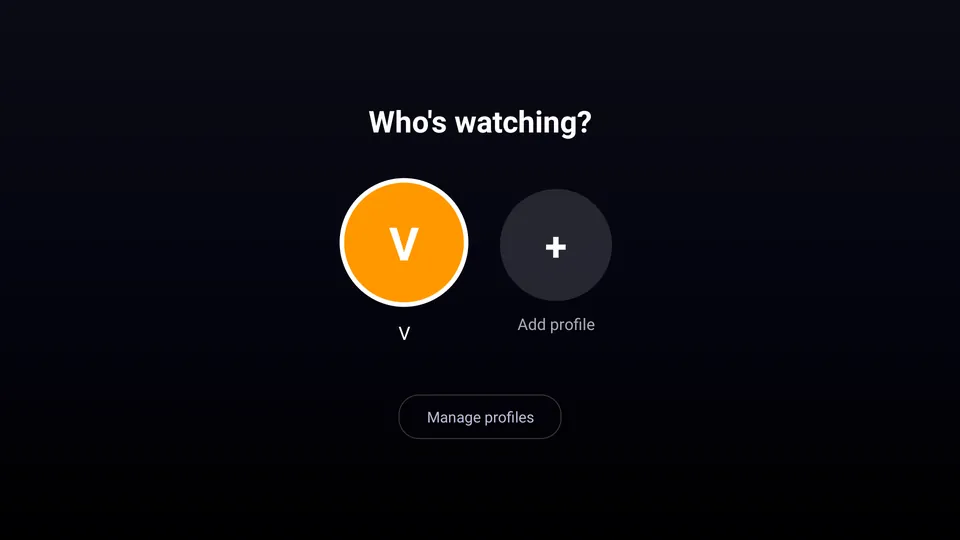
- Profiles: add separate viewers, each with their own favourites, Watch Later and Continue Watching.
- Parental PIN: set a 4 to 8 digit PIN that is asked when a profile is opened, and hide categories you don't want shown.
- Display & tabs: choose which tabs and rows appear, and the startup page.
- Accent colour, clock and weather can be changed under Appearance.
- Network & DNS and Remote buttons let you adjust the connection and what each remote key does.
Troubleshooting
"Server URL and Username are required" or the source won't add
Check the address, username and password exactly as your provider gave them, including the port number. Make sure the TV is online, then try again.
My MAG portal says the MAC address isn't accepted
The MAC must be registered with your provider first. Enter it as 00:1A:79:xx:xx:xx, and fill in Device ID or Serial Number under Advanced only if your provider asks for them.
Posters or cast are missing
Add your own free TMDB key under Profile menu → TMDB (metadata). Then reopen the title.
Subtitle search doesn't work
Check that the username, password and API key in Subtitles account are all from your own OpenSubtitles account, and that the API key comes from opensubtitles.com/consumers.
A tracker says the code didn't work
Check the Client ID and secret, and that the redirect address on the service's developer page matches the one listed above.
Something else is wrong
Post in the group linked to t.me/Stre4mX with your device, Android version, what you did and what happened. Please never post passwords or private links. The Profile menu also has an Error log you can read out.
Frequently asked questions
Where do I get channels or a playlist?
StreamX is a media player only and includes no content. You add the playlist, Xtream login or portal details that you already have from your own provider.
Do I need an account to use StreamX?
No. Signing in is optional and only needed for encrypted sync of your sources, watch history and settings across devices.
Do I have to add a TMDB key?
No. Posters, cast and trailers work with shared access, but you can add your own free TMDB key so requests count against your account.
Why does subtitle search ask for my own OpenSubtitles API key?
Subtitles use your own OpenSubtitles account and API key, saved for your profile only, so nothing is shared or paid through StreamX.
Are the Trakt, Simkl and AniList trackers required?
No. They are optional and off until you link one. Once linked you can pause syncing at any time.